L1 Pro and SimpleSync: Difference between revisions
Jump to navigation
Jump to search
mNo edit summary |
mNo edit summary |
||
| (One intermediate revision by the same user not shown) | |||
| Line 1: | Line 1: | ||
You can add your L1 Pro (L1 Pro8, L1 Pro16, L1 Pro32) to a [https://www.bose.com/en_us/support/article/using-groups.html Bose SimpleSync group]. | [[File:Bose SIMPLESYNC L1 Pro.jpg|link=https://www.bose.com/en_us/support/article/using-groups.html|200px|right|Bose SimpleSync]]You can add your L1 Pro (L1 Pro8, L1 Pro16, L1 Pro32) to a [https://www.bose.com/en_us/support/article/using-groups.html Bose SimpleSync group]. | ||
This will allow you to stream audio from your [https://www.bose.com/en_us/support/article/using-groups.html Bose SimpleSync compatible device] (e.g., soundbar, Smart Home device) to the L1 Pro, via Bluetooth. | This will allow you to stream audio from your [https://www.bose.com/en_us/support/article/using-groups.html Bose SimpleSync compatible device] (e.g., soundbar, Smart Home device) to the L1 Pro, via Bluetooth. | ||
| Line 7: | Line 7: | ||
; One-time setup with the Bose L1 Mix app | ; One-time setup with the Bose L1 Mix app | ||
# Connect to your L1 Pro | # Connect to your L1 Pro | ||
# Tap the gear icon at the top right (Product Settings) | # Tap the gear icon ⚙ at the top right (Product Settings) | ||
# Tap Bluetooth Connections | # Tap Bluetooth Connections | ||
# Tap Connect New | # Tap Connect New | ||
| Line 21: | Line 21: | ||
; Set up SIMPLESYNC so all the speakers in the group are 'in sync' so there's no delay between speakers. | ; Set up SIMPLESYNC so all the speakers in the group are 'in sync' so there's no delay between speakers. | ||
# While you are still in the Bose Music App and connected to your source device, | # While you are still in the Bose Music App and connected to your source device, | ||
#* Tap the gear icon (Settings) | #* Tap the gear icon ⚙(Settings) | ||
#* Tap '''Audio''' | #* Tap '''Audio''' | ||
#* At the bottom of the next screen tap '''AV Group Sync''' | #* At the bottom of the next screen tap '''AV Group Sync''' | ||
Latest revision as of 03:13, 30 March 2021
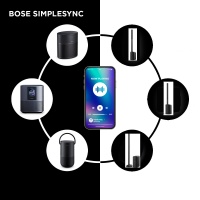
You can add your L1 Pro (L1 Pro8, L1 Pro16, L1 Pro32) to a Bose SimpleSync group.
This will allow you to stream audio from your Bose SimpleSync compatible device (e.g., soundbar, Smart Home device) to the L1 Pro, via Bluetooth.
Devices that support SIMPLESYNC include Bose Home Speaker 500 Bose Soundbar 500 Bose Soundbar 700 Bose Soundbar System Bundle Bose Home Speaker 300 Bose Portable Smart Speaker Bose Home Speaker 450 Bose Smart Soundbar 300 more...
- One-time setup with the Bose L1 Mix app
- Connect to your L1 Pro
- Tap the gear icon ⚙ at the top right (Product Settings)
- Tap Bluetooth Connections
- Tap Connect New
- One-time setup with the Bose Music App
- Connect to your Bose Bose SimpleSync compatible device (e.g., Soundbar 700)
- Select your source device (e.g., Soundbar 700)
- Tap the icon for your device (bottom right)
- Tap Group Speakers
- Under SIMPLESYNC - at the bottom, tap Connect a New Product
- Select your L1 Pro and the app will add it to the SIMPLESYNC group.
- Set up SIMPLESYNC so all the speakers in the group are 'in sync' so there's no delay between speakers.
- While you are still in the Bose Music App and connected to your source device,
- Tap the gear icon ⚙(Settings)
- Tap Audio
- At the bottom of the next screen tap AV Group Sync
- Tap Sync With Group
- Making the connection
Now that you have added your L1 Pro to the SIMPLESYNC group, your device should remember the connection. If the connection gets lost or you want to sync with a different device
- Use the Bose Music app and connect to your source device (e.g., soundbar)
- Tap the icon for your device (bottom right)
- Tap Group Speakers
- Tap your L1 Pro and wait for the L1 Pro to be added to the group
Once you have created the SIMPLESYNC group